
How to Enable or Disable Inline AutoComplete in File Explorer, in Windows 11
Key Points
- Turn Inline AutoComplete on or off in Windows 11 File Explorer and Run via Control Panel, or Group Policy.
- Inline AutoComplete autofills previously used commands and file paths to speed up navigation, but may expose Run history on shared PCs; disabling it does not clear File Explorer history.
- Deploy at scale using PowerShell, Registry scripts, or Active Directory Group Policy; settings are per-user, require Explorer restart or reboot, and may work inconsistently across some Windows 11 builds.
Inline AutoComplete automatically fills (autofills) in previously used commands and paths in the Run dialog and File Explorer. This article explains how to enable or disable Inline AutoComplete on Windows 11 devices, with step-by-step instructions for using the Settings app as well as the Windows Registry and Group Policy.
Why enable or disable Inline AutoComplete?
Inline AutoComplete applies to the Run dialog in Windows File Explorer in older versions of Windows 11.
When AutoComplete is enabled, if the text you enter matches a previous command or path, Windows will suggest it to you, so that you can autofill and execute it by pressing tab or clicking on the suggestion.

AutoComplete is sometimes discouraged on shared PCs as it can reveal information about previously used commands or files that you may not want to share. Enabling it, however, is often preferable for convenience as it saves you from typing out repetitive commands and lets you access previously visited paths without having to navigate to them.
Note that disabling Inline AutoComplete doesn’t clear the address bar, run history, or recent files.
What you need to configure Inline AutoComplete in Windows 11
The Inline AutoComplete setting described in this article is disabled by default in Windows 11. Note that currently, the application of this setting is inconsistent across Windows 11 builds, and not supported in the most recent versions of the Windows File Explorer, which is configured separately.
Inline AutoComplete settings are applied per-user, so no administrative privileges are required unless the setting is enforced on your enterprise network or through mobile device management (MDM).
If you are deploying these settings using Group Policy or scripting, you’ll need administrative access.
How to enable or disable Inline AutoComplete using the Windows Control Panel
Inline AutoComplete is configured from the Internet Options in the legacy Control Panel:
- Right-click on the Start button and select Run
- In the run dialog, type control and press the Enter key to launch the legacy Windows Control Panel
- Change the View By: option in the top-left of the Control Panel to Large icons
- Click Internet Options
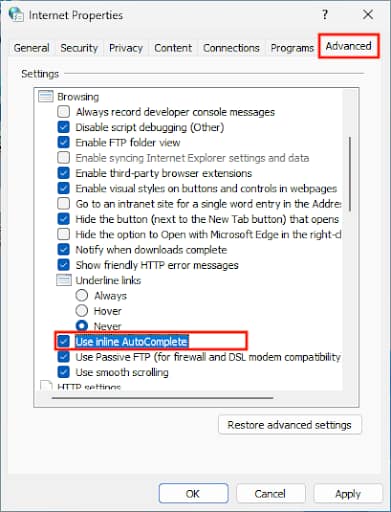
- In the Internet Properties dialog, click the Advanced Tab
- Scroll down to Browsing
- Check or uncheck Use inline AutoComplete
- Click OK to close the dialog and apply the change
How to configure Inline AutoComplete using the Windows Registry Editor
You can also toggle this setting using the Windows Registry Editor:
- Right-click on the Start button and click Run
- Type the command regedit and click OK to launch the Registry Editor
- Navigate to the registry key located at HKEY_CURRENT_USER\Software\Microsoft\Windows\CurrentVersion\Explorer\AutoComplete
- If the Append Completion and AutoSuggest string values do not exist in this location, create each in turn by right-clicking on the AutoComplete key and then selecting New > String Value
- Change the value of Append Completion and AutoSuggest by double-clicking on each
- Set the values to yes or no to enable or disable Inline AutoComplete
You will need to restart Explorer or reboot to apply the change.
Automating Inline AutoComplete settings with PowerShell
You can automate the deployment of these Registry settings using PowerShell:
To disable Inline AutoComplete:
Set-ItemProperty -Path “HKCU:\Software\Microsoft\Windows\CurrentVersion\Explorer\AutoComplete” -Name “Append Completion” -Value “no”
Set-ItemProperty -Path “HKCU:\Software\Microsoft\Windows\CurrentVersion\Explorer\AutoComplete” -Name “AutoSuggest” -Value “no”
To enable Inline AutoComplete:
Set-ItemProperty -Path “HKCU:\Software\Microsoft\Windows\CurrentVersion\Explorer\AutoComplete” -Name “Append Completion” -Value “yes”
Set-ItemProperty -Path “HKCU:\Software\Microsoft\Windows\CurrentVersion\Explorer\AutoComplete” -Name “AutoSuggest” -Value “yes”
Again, you’ll need to restart the Explorer.exe process or reboot your machine for the changes to take effect.
These settings can be deployed to multiple machines in education and enterprise environments using your remote monitoring and management (RMM) tools.
Configuring Inline AutoComplete using Group Policy
Local Group Policy is available on Windows 11 Pro, and Group Policy in Active Directory can be used to deploy settings to multiple machines in enterprise environments:
- Open the Run dialog and enter the command gpedit.msc
- Navigate to User Configuration > Administrative Templates > Windows Components > Internet Explorer > Internet Settings > AutoComplete
- Double-click on the Turn on inline AutoComplete in File Explorer setting and set its value to enabled to enable Inline AutoComplete, or Disabled or Not Configured to turn it off
Restart Explorer or reboot to apply the change, as with the other methods.
How to clear the File Explorer AutoComplete history
As turning off Inline AutoComplete doesn’t clear the File Explorer history, you’ll need to do the following:
- Open the File Explorer
- Click the menu icon (…)
- Click Options
- Open the General Tab
- Under Privacy, click the Clear button next to Clear File Explorer History
- Optionally uncheck Show recently used files, Show frequently used folders, Show recommended section, and Show files based on your account and cloud provider activity to prevent the history from being repopulated
Apply consistent privacy settings across education and enterprise fleets with NinjaOne automation
NinjaOne automates the process of configuring and enforcing privacy settings (including AutoComplete) across Windows devices, wherever they are located. NinjaOne unifies MDM and RMM with automation, endpoint security, backup, and remote access, along with a suite of additional management and support tools for IT teams and managed service providers (MSPs). This toolchain helps you ensure that every device is configured, patched, and secure, and in full compliance with privacy laws, all while meeting your users’ expectations for fast, effective tech support.
PakarPBN
A Private Blog Network (PBN) is a collection of websites that are controlled by a single individual or organization and used primarily to build backlinks to a “money site” in order to influence its ranking in search engines such as Google. The core idea behind a PBN is based on the importance of backlinks in Google’s ranking algorithm. Since Google views backlinks as signals of authority and trust, some website owners attempt to artificially create these signals through a controlled network of sites.
In a typical PBN setup, the owner acquires expired or aged domains that already have existing authority, backlinks, and history. These domains are rebuilt with new content and hosted separately, often using different IP addresses, hosting providers, themes, and ownership details to make them appear unrelated. Within the content published on these sites, links are strategically placed that point to the main website the owner wants to rank higher. By doing this, the owner attempts to pass link equity (also known as “link juice”) from the PBN sites to the target website.
The purpose of a PBN is to give the impression that the target website is naturally earning links from multiple independent sources. If done effectively, this can temporarily improve keyword rankings, increase organic visibility, and drive more traffic from search results.
Related Posts
MSP Dark Data Discovery and Risk Reduction
The Week in Charts (11/7/25)